Arbrea Body uses a proprietary “Local AI” engine body simulator designed to deliver fast, realistic 3D simulations in real time.
The Fat Grafting tool in Arbrea Body allows surgeons and aesthetic practitioners to simulate this process in real time on the patient’s own 3D body scan, before any procedure takes place. This means patients can visually understand what the outcome may look like, making it a powerful tool for setting realistic expectations and building consultation confidence. Rather than relying on verbal descriptions or generic before/after photos, practitioners can show a personalized, patient-specific simulation in just a few taps.
Open Arbrea Suite #
Launch the Arbrea Suite app on your iPad to begin the simulation.
Getting Started #
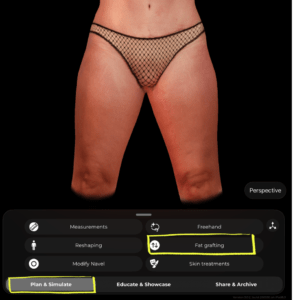
Once you have your patient scan ready, make sure you’re in the Plan & Simulate tab at the bottom of the screen. From the tool menu, tap Fat grafting.
Selecting an Area #
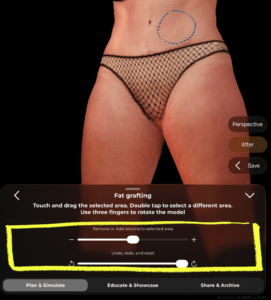
A blue dashed outline will appear on the 3D model indicating the currently selected area. This is the zone where volume will be added or removed.
- Double tap on any area of the model to select a different zone
- Use three fingers to rotate the model and access different angles without losing your selection
 #
#

Adding or Removing Volume #
Once your area is selected, use the slider at the bottom of the panel:
- Drag toward + to add volume (simulate fat grafting / volume enhancement)
- Drag toward − to remove volume (simulate fat reduction in that area)
The changes appear in real time on the 3D model.
#
Undoing Changes #
Below the volume slider, you’ll find the Undo, redo, and reset controls:
- Use the undo arrow to step back one change at a time
- Use the redo arrow to reapply a change
- Drag the reset slider all the way to revert the area back to its original state
Reviewing the Result #
On the right side of the screen you’ll find two helpful buttons:
- After – tap to toggle between the original and simulated result so you can compare before and after
- Save – tap to save the current simulation state before moving on or sharing with the patient
Tips #
- Rotate the model to a flattering angle before selecting an area — this helps you target the right zone more precisely.
- You can apply fat grafting to multiple areas in the same session by double tapping to switch between zones.
- Use the After toggle during the consultation to walk the patient through the expected result in a clear, visual way.
Conclusion #
Arbrea Body allows you and the patients to visualize realistic body outcomes before the consultation, so patients are prepared to move forward.




 English
  Portuguese
  Italian
  Spanish
  German
  Arabic
  French
  Korean
  Albanian
  Thai
Thai  Hindi
Hindi  Vietnamese
  Japanese