
The new Free Hand Tool in Arbrea Face gives plastic surgeons enhanced control when simulating facial procedures. With features like adjustable brush sizes, area mode, and integration with angles and measurements, this tool helps create highly accurate, personalized simulations for patients.
Selecting Different Regions of the Face #
-
Start by choosing the specific facial region you wish to modify (e.g., cheeks, jawline, chin).
-
This segmentation allows you to target your adjustments precisely without affecting unrelated areas.
Why It’s Important:
Provides a focused, region-specific approach to facial contouring.
Accessing the Free Hand Tool #
-
Open the Free Hand Tool from the simulation panel.
-
Choose between Brush Mode for smooth edits or Area Mode for custom selections.
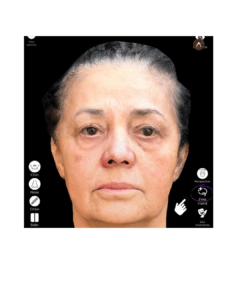
Enables manual sculpting and control for detailed facial adjustments.
Changing the Brush Size #
Use the slider to adjust the brush size based on the area and precision needed:
-
-
Smaller brushes for delicate features (e.g., nose, lips)
-
Larger brushes for broader areas (e.g., cheeks, neck)
-
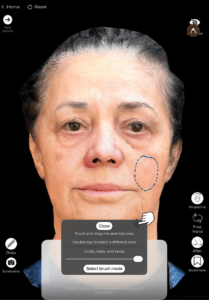
Gives you full control over the intensity and coverage of the simulation.
Combining the Angles and Measurement Tools #
-
Use the Angles Tool to check changes in facial symmetry and proportion.
-
Activate the Measurement Tool to track real-time changes in distances, widths, and contours.
Helps ensure the simulation stays natural, proportionate, and aligned with aesthetic standards.
Using Area Mode in the Free Hand Tool #
-
Switch to Area Mode if you want to define a custom shape or zone.
-
Simply draw the desired area with your finger or stylus and apply the adjustment.
Great for non-symmetrical edits or patient-specific sculpting.
Using the Skin Treatments Tool #
Combine the Free Hand simulation with the Skin Treatments Tool to:
-
-
Smooth fine lines and wrinkles
-
Improve skin texture
-
Simulate surface treatments like chemical peels or laser resurfacing
-
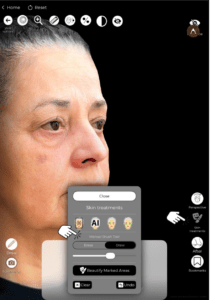
Delivers a comprehensive simulation by addressing both structure and surface.
Comparing Before and After #
-
Use the Before/After toggle or side-by-side comparison to show the impact of your adjustments.
-
Patients can clearly see how subtle sculpting and treatments enhance their appearance.

Boosts patient trust and helps manage expectations.
Conclusion #
The new Free Hand Tool in Arbrea Face is a powerful addition to your consultation workflow. With the ability to precisely sculpt facial features, adjust angles and proportions, and combine treatments for realistic simulations, it helps plastic surgeons deliver personalized, data-driven, and visually engaging consultations.
For more guidance, watch the full video tutorial below.





 English
  Portuguese
  Italian
  Spanish
  German
  Arabic
  French
  Korean
  Albanian
  Thai
Thai  Hindi
Hindi  Vietnamese
  Japanese