Arbrea Body uses a proprietary “Local AI” engine body simulator designed to deliver fast, realistic 3D simulations in real time.
Open Arbrea Suite #
Launch the Arbrea Suite app on your iPad to begin the simulation.
Click Training Hub or New Patient #
Begin by exploring step-by-step guidance to help you become familiar with each feature in the Arbrea Suite.
Why Is It Important?
Gives you a clear learning path and hands-on practice with all the tools.
Getting Started #
Once you’ve completed the simulation in Arbrea Body, you’re ready to share the results directly with your patient. Tap the Share & Archive tab at the bottom of the screen.
Accessing Screenshots & Gallery #
Inside Share & Archive, you’ll find:
- Screenshots – individual captures taken during the simulation session
- Gallery – a collected view of all your screenshots and any recorded videos from the session
 #
#

Selecting Content to Share #
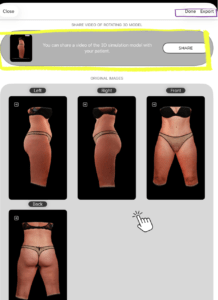
Browse through the gallery and tap to select the screenshots or videos you want to share with the patient. You can select multiple items at once — for example, a before/after screenshot alongside a simulation video.
#
Exporting #
Once you’ve made your selection, you have two export options:
- Export as ZIP – bundles all selected files into a single ZIP file, ideal for sending everything at once via email or a file sharing platform
- Individual Export – exports each selected file separately, useful if you want to share specific images one by one
#

Tips #
- Take screenshots at key moments during the simulation — different angles, before/after views — so you have a rich gallery to share with the patient afterward.
- Videos are especially impactful for patients, as they can see the simulation from multiple angles in motion.
- The ZIP export is the most convenient option when sharing a full consultation summary with a patient.
Conclusion #
Arbrea Body allows you and the patients to visualize realistic body outcomes before the consultation, so patients are prepared to move forward.



 English
  Portuguese
  Italian
  Spanish
  German
  Arabic
  French
  Korean
  Albanian
  Thai
Thai  Hindi
Hindi  Vietnamese
  Japanese