อาร์เบรีย บอดี้ ใช้ระบบกรรมสิทธิ์เฉพาะ “เอนจิ้น AI ท้องถิ่น โปรแกรมจำลองร่างกายที่ออกแบบมาเพื่อให้การจำลองแบบ 3 มิติที่สมจริงและรวดเร็วแบบเรียลไทม์.
เครื่องมือ Fat Grafting ใน อาร์เบรีย บอดี้ ช่วยให้ศัลยแพทย์และผู้เชี่ยวชาญด้านความงามสามารถจำลองกระบวนการนี้ได้แบบเรียลไทม์บนภาพสแกนร่างกาย 3 มิติของตัวผู้ป่วยเอง ก่อนที่จะมีการทำหัตถการใดๆ ซึ่งหมายความว่าผู้ป่วยสามารถมองเห็นและเข้าใจผลลัพธ์ที่อาจเกิดขึ้นได้ ทำให้เป็นเครื่องมือที่มีประสิทธิภาพในการสร้างความคาดหวังตามความเป็นจริงและสร้างความมั่นใจในการปรึกษา แทนที่จะต้องอาศัยเพียงคำอธิบายด้วยวาจาหรือภาพก่อน/หลังทำทั่วไป ผู้เชี่ยวชาญสามารถแสดงการจำลองเฉพาะบุคคลและเจาะจงสำหรับผู้ป่วยรายนั้นได้ด้วยการแตะเพียงไม่ครั้ง.
เปิด Arbrea Suite #
เปิดใช้งาน อาร์เบรีย สวีท แอปบน iPad ของคุณเพื่อเริ่มการจำลอง.
เริ่มต้นใช้งาน #
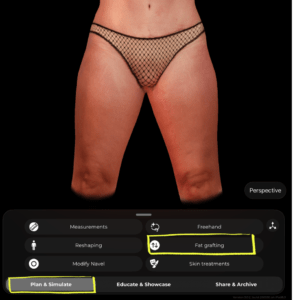
เมื่อคุณเตรียมการสแกนผู้ป่วยของคุณพร้อมแล้ว ให้แน่ใจว่าคุณอยู่ใน วางแผนและจำลองสถานการณ์ แท็บที่ด้านล่างของหน้าจอ จากเมนูเครื่องมือ ให้แตะ การฉีดไขมัน.
การเลือกพื้นที่ #
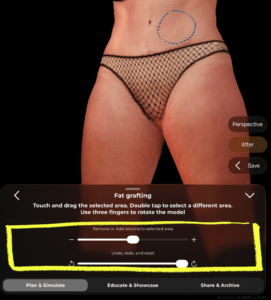
เส้นประสีน้ำเงินจะปรากฏขึ้นบนโมเดล 3 มิติเพื่อแสดงถึงพื้นที่ที่เลือกอยู่ในขณะนี้ นี่คือโซนที่จะเพิ่มหรือลดปริมาตร.
- แตะสองครั้ง บนส่วนใดก็ได้ของโมเดลเพื่อเลือกโซนอื่น
- ใช้นิ้วสามนิ้ว หมุนโมเดลและเข้าถึงมุมมองต่างๆ โดยไม่สูญเสียการเลือกของคุณ
 #
#

การเพิ่มหรือลดระดับเสียง #
เมื่อเลือกพื้นที่ของคุณแล้ว ให้ใช้แถบเลื่อนที่ด้านล่างของแผง:
- ลากไปทาง + ถึง เพิ่มเสียง (จำลองการฉีดไขมัน / การเพิ่มปริมาตร)
- ลากไปทาง − ถึง ปิดเสียง (จำลองการลดไขมันในบริเวณนั้น)
การเปลี่ยนแปลงจะปรากฏขึ้นแบบเรียลไทม์บนโมเดล 3 มิติ.
#
เลิกทำสิ่งที่เปลี่ยนแปลง #
ใต้ตัวเลื่อนระดับเสียง คุณจะพบกับ เลิกทำ ทำซ้ำ และรีเซ็ต การควบคุม
- ใช้ เลิกทำ ลูกศรสำหรับย้อนกลับทีละหนึ่งการเปลี่ยนแปลง
- ใช้ ทำใหม่ ลูกศรเพื่อทำซ้ำการเปลี่ยนแปลง
- ลากแถบเลื่อนรีเซ็ตไปจนสุดเพื่อให้พื้นที่กลับสู่สถานะเดิม
กำลังตรวจสอบผลลัพธ์ #
ที่ด้านขวาของหน้าจอ คุณจะพบปุ่มที่มีประโยชน์สองปุ่ม:
- หลังจาก – แตะเพื่อสลับระหว่างต้นฉบับและผลลัพธ์ที่จำลองขึ้น เพื่อให้คุณสามารถเปรียบเทียบก่อนและหลังได้
- บันทึก – แตะเพื่อบันทึกสถานะการจำลองปัจจุบันก่อนดำเนินการต่อหรือแชร์กับผู้ป่วย
เคล็ดลับ #
- หมุนโมเดลไปยังมุมที่ดูดีที่สุดก่อนเลือกพื้นที่ ซึ่งจะช่วยให้คุณกำหนดเป้าหมายบริเวณที่ต้องการได้แม่นยำยิ่งขึ้น.
- คุณสามารถฉีดไขมันเติมเต็มหลายบริเวณได้ในครั้งเดียวกัน โดยการแตะสองครั้งเพื่อสลับระหว่างบริเวณต่างๆ.
- ใช้ หลังจาก สลับไปมาระหว่างการให้คำปรึกษาเพื่อพาผู้ป่วยไปดูผลลัพธ์ที่คาดหวังในรูปแบบที่ชัดเจนและมองเห็นได้ชัดเจน.
บทสรุป #
อาร์เบรีย บอดี้ ช่วยให้คุณและผู้ป่วยสามารถเห็นภาพผลลัพธ์ของร่างกายที่สมจริงก่อนการปรึกษา เพื่อให้ผู้ป่วยมีความพร้อมที่จะก้าวไปข้างหน้า.




 English
  Portuguese
  Italian
  Spanish
  German
  Arabic
  French
  Korean
  Albanian
  Thai
Thai  Hindi
Hindi  Vietnamese
  Japanese