
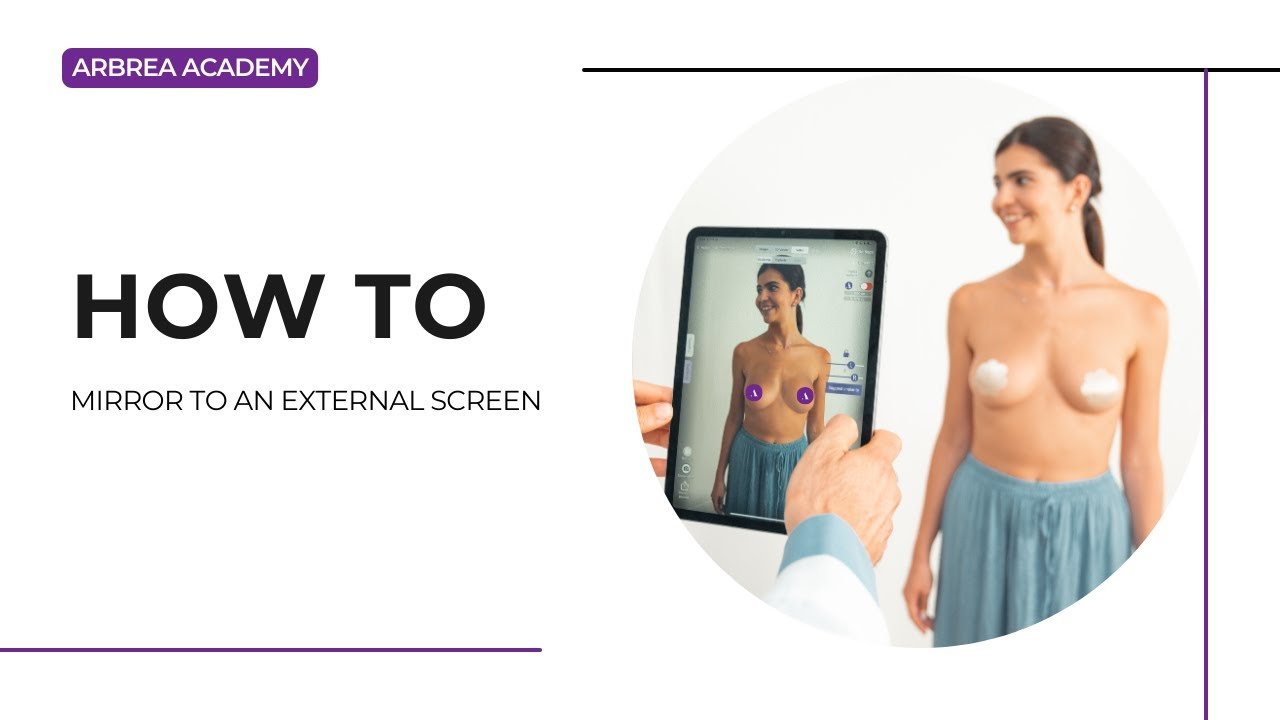
อาร์เบรีย สวีท allows plastic surgeons to enhance patient consultations by mirroring simulations to an external screen. This feature enables real-time visualization of AI-powered aesthetic simulations, making consultations more interactive and professional.
Connecting Your Device to an External Screen #
To mirror your iPad screen to an external display, follow these steps:
- Ensure your device is connected to the external screen:
- ใช้ cable connection (e.g., HDMI or USB-C adapter).
- If using wireless mirroring, ensure both devices are on the same network.
- Open the Screen Mirroring Menu:
- Swipe down from the top-right corner of the iPad to open the Control Center.
- แตะ Screen Mirroring and select the desired external display.

ประโยชน์: Once connected, all modifications and simulations on the iPad will be instantly mirrored in real-time on the external screen.
Adjusting the External Video Display Settings #
- Open the Simulation Settings:
- คลิกที่ การตั้งค่า in the upper-right corner of the iPad screen.
- ไปยัง External Display Video Settings.

2. Customize Display Preferences:
-
- Adjust screen orientation (vertical or horizontal).
- Flip the image if required for the consultation setup.
- Modify texture quality for enhanced visualization.

ข้อได้เปรียบ: These settings allow for optimal display adjustments, เพื่อให้แน่ใจว่า clear and professional presentation.
บทสรุป #
เดอะ external screen mirroring feature ใน อาร์เบรีย สวีท เพิ่มประสิทธิภาพ patient communication and consultation efficiency by providing real-time, high-quality visualizations. โดยการใช้ seamless device connectivity, customizable display settings, and interactive simulations, surgeons can deliver a superior consultation experience.
สำหรับคำแนะนำเพิ่มเติม รับชมได้ที่ วิดีโอแนะนำแบบเต็ม ด้านล่าง.





 English
  Portuguese
  Italian
  Spanish
  German
  Arabic
  French
  Korean
  Albanian
  Thai
Thai  Hindi
Hindi  Vietnamese
  Japanese