
Hit enter to search or ESC to close
Close Search
Arbrea Labs
  • Book a demo
Menu
  • Solutions
    • For Plastic Surgeons
      • For Plastic Surgeons
      • For Aesthetic Doctors
      • For Dentists
  • About us
    • About us
    • About us
      • About Us
      • Arbrea Help Center
      • Careers
      • Contact
  • What We Build
    • What We Build
    • What We Build
      • Arbrea Suite
      • Arbrea Breast
      • Arbrea for Face
      • Lindapp – Your Marketing Booster
  • Resources
    • Resources
    • Resources
      • Publications
      • Success Stories
      • Arbrea Blog
      • Marketing & Sales Tips
  • No Black Friday
  • Arbrea Partner Program
  • EN
    • ES
    • IT
    • DE
    • PT
  • Get Started for Free
  • Book a demo
Arbrea Labs
  • Solutions
    • For Plastic Surgeons
      • For Plastic Surgeons
      • For Aesthetic Doctors
      • For Dentists
  • About us
    • About us
    • About us
      • About Us
      • Arbrea Help Center
      • Careers
      • Contact
  • What We Build
    • What We Build
    • What We Build
      • Arbrea Suite
      • Arbrea Breast
      • Arbrea for Face
      • Lindapp – Your Marketing Booster
  • Resources
    • Resources
    • Resources
      • Publications
      • Success Stories
      • Arbrea Blog
      • Marketing & Sales Tips
  • No Black Friday
  • Arbrea Partner Program
  • EN
    • ES
    • IT
    • DE
    • PT
  • Get Started for Free
  • facebook
  • linkedin
  • youtube
  • instagram
Arbrea Suite

Arbrea Suite Academy

5
  • How to Share a Case from Arbrea Suite to Lindapp
  • How to Use Arbrea Suite
  • How to Integrate Arbrea into Your Consultation
  • How to Activate Private Cloud Options
  • How to Customize Arbrea Suite to Your Brand 
Arbrea Breast Augmentation 3D simulator

Arbrea Breast Academy

22
  • How to Use Arbrea Breast – An Overview
  • How to Create a 3D Model for the Breast
  • How to Simulate in AR & 3D Mode
  • How to Use Sculpting Mode
  • How to Use the Implants Catalog
  • How to Set Up the Implant Brands
  • How to Use the Shape Tool
  • How to Use Bookmarks to Compare Different Implants
  • How to Simulate a Mastopexy With or Without Implants
  • How to Use Measurements
  • How to Use the Scars Tool
  • How to Use the Fat Grafting Tool
  • How to Share the Breast Simulation with Patients
  • How to Simulate Breast Reconstruction
  • How to Simulate Tuberous Breast
  • How to Simulate a Gynecomastia
  • How to Simulate an Implant Replacement 
  • How to Capture Complex Cases
  • How to Import a Model from Lindapp
  • How to Mirror to an External Screen
  • How to Order Implants
  • How to Simulate Asymmetries
rhinoplasty simulator

Arbrea Face Academy

12
  • How to Use Arbrea Face
  • How to Make a 3D Model
  • How to Use the Automatic Measurements Tools
  • How to Use the New Free Hand Tool
  • How to Use the Annotation Tool for Injectables
  • How to Simulate a Rhinoplasty
  • How to Simulate a Facelift
  • How to Simulate Lip Procedures
  • How to Simulate Cheek Procedures
  • How to Share the Face Simulation with Patients
  • How to Simulate Chin Procedures
  • How to Simulate a Bichectomy
How to simulate breast augmentation

Lindapp

13
  • How to Add a Lindapp Code from Arbrea Suite
  • How to Request the Activation of Lindapp
  • How to Check Your Lindapp Analytics
  • How to Check and Contact Your Lindapp Users
  • How to Share a Case from Lindapp to Arbrea Suite
  • How to Use Lindapp
  • Why Should You Use Lindapp
  • What Are the Benefits of Lindapp to Current Users 
  • What Kind of Links You Can Include on Lindapp
  • How to Market Lindapp on Instagram and Other Media
  • How to Use Lindapp to Reduce No-Show Rate
  • How to Use Lindapp in Remote Consultations
  • How to Integrate Lindapp in Your Website
View Categories
  • Home
  • Docs
  • Arbrea Breast Academy
  • How to Simulate in AR & 3D Mode

How to Simulate in AR & 3D Mode

Arbrea Breast offers powerful 3D and Augmented Reality (AR) simulation modes, allowing plastic surgeons to provide interactive, real-time visualizations for breast augmentation consultations. By switching between 3D mode and AR mode, surgeons can enhance patient engagement and improve pre-operative planning.

How to Simulate in 3D Mode #

  1. Open Arbrea Breast and select the patient’s case.
  2. Click on the 3D Mode option to activate the fully interactive 3D simulation.
  3. Rotate, zoom, and adjust the perspective to analyze the breast augmentation simulation from all angles.
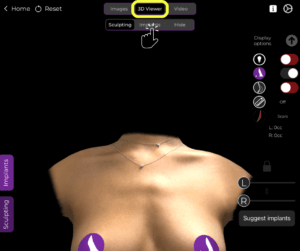
How to Simulate in 3D Mode

Why Use 3D Mode?

  • Provides a detailed and realistic visualization of breast volume and projection.
  • Allows for precise modifications based on surgical planning.

How to Simulate in Augmented Reality (AR) Mode #

  1. Switch to AR Mode by selecting the AR Simulation option.
  2. The system will overlay the simulated breast augmentation directly onto the patient’s live image.
  3. Move the device around to see real-time changes from different angles.
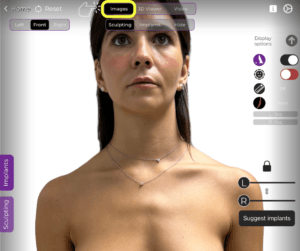
How to Simulate in Augmented Reality (AR) Mode

Benefits of AR Mode:

  • Enhances patient engagement by providing a realistic, interactive preview.
  • Allows patients to see potential results in real time on their own body.
  • Improves decision-making and confidence in the chosen procedure.

Changing the View During Simulation #

  1. Adjust the viewing angle by tapping and dragging on the screen.
  2. Use zoom and rotation gestures to refine visualization.
  3. Switch between 3D Mode and AR Mode seamlessly to provide different perspectives.

Why This Matters?

  • Helps patients better understand the expected results.
  • Provides multiple viewpoints to aid in surgical planning.

Conclusion #

The 3D and AR simulation tools in Arbrea Breast provide an innovative and interactive approach to breast augmentation consultations. By utilizing real-time 3D modeling, augmented reality overlays, and dynamic viewpoint adjustments, surgeons can enhance patient confidence and consultation efficiency.

For more guidance, watch the full video tutorial below.
Updated on March 28, 2025

What are your Feelings

    How to Mirror to an External ScreenHow to Order Implants
    Table of Contents
    • How to Simulate in 3D Mode
    • How to Simulate in Augmented Reality (AR) Mode
    • Changing the View During Simulation
    • Conclusion
    • Instagram
    • LinkedIn
    • YouTube
    • About Us
    • Arbrea Help Center
    • Careers
    • Privacy Policy
    • Imprint
    • Get Started for Free
    • Book a demo
    • Arbrea Breast
    • Arbrea Face
    • Lindapp

    Upcoming Events

    Jan 29
    January 29 - January 31

    IMCAS World Congress

    View Calendar
    We use cookies on our website to give you the most relevant experience by remembering your preferences and repeat visits. By clicking “Accept”, you consent to the use of ALL the cookies.
    Do not sell my personal information.
    Cookie SettingsAccept
    Manage consent

    Privacy Overview

    This website uses cookies to improve your experience while you navigate through the website. Out of these, the cookies that are categorized as necessary are stored on your browser as they are essential for the working of basic functionalities of the website. We also use third-party cookies that help us analyze and understand how you use this website. These cookies will be stored in your browser only with your consent. You also have the option to opt-out of these cookies. But opting out of some of these cookies may affect your browsing experience.
    Necessary
    Always Enabled
    Necessary cookies are absolutely essential for the website to function properly. These cookies ensure basic functionalities and security features of the website, anonymously.
    CookieDurationDescription
    cookielawinfo-checkbox-analytics11 monthsThis cookie is set by GDPR Cookie Consent plugin. The cookie is used to store the user consent for the cookies in the category "Analytics".
    cookielawinfo-checkbox-functional11 monthsThe cookie is set by GDPR cookie consent to record the user consent for the cookies in the category "Functional".
    cookielawinfo-checkbox-necessary11 monthsThis cookie is set by GDPR Cookie Consent plugin. The cookies is used to store the user consent for the cookies in the category "Necessary".
    cookielawinfo-checkbox-others11 monthsThis cookie is set by GDPR Cookie Consent plugin. The cookie is used to store the user consent for the cookies in the category "Other.
    cookielawinfo-checkbox-performance11 monthsThis cookie is set by GDPR Cookie Consent plugin. The cookie is used to store the user consent for the cookies in the category "Performance".
    viewed_cookie_policy11 monthsThe cookie is set by the GDPR Cookie Consent plugin and is used to store whether or not user has consented to the use of cookies. It does not store any personal data.
    Functional
    Functional cookies help to perform certain functionalities like sharing the content of the website on social media platforms, collect feedbacks, and other third-party features.
    Performance
    Performance cookies are used to understand and analyze the key performance indexes of the website which helps in delivering a better user experience for the visitors.
    Analytics
    Analytical cookies are used to understand how visitors interact with the website. These cookies help provide information on metrics the number of visitors, bounce rate, traffic source, etc.
    Advertisement
    Advertisement cookies are used to provide visitors with relevant ads and marketing campaigns. These cookies track visitors across websites and collect information to provide customized ads.
    Others
    Other uncategorized cookies are those that are being analyzed and have not been classified into a category as yet.
    SAVE & ACCEPT
    Powered by CookieYes Logo
    We've detected you might be speaking a different language. Do you want to change to:
    en_US EN
    en_US EN
    pt_BR PT
    it_IT IT
    es_ES ES
    de_DE DE
    Change Language
    Close and do not switch language