
Arbrea Body sử dụng công nghệ độc quyền “Cơ chế ”AI cục bộ” Đây là một máy tập thể dục được thiết kế để cung cấp các mô phỏng 3D nhanh chóng và chân thực trong thời gian thực.
The Fat Grafting tool in Arbrea Body allows surgeons and aesthetic practitioners to simulate this process in real time on the patient’s own 3D body scan, before any procedure takes place. This means patients can visually understand what the outcome may look like, making it a powerful tool for setting realistic expectations and building consultation confidence. Rather than relying on verbal descriptions or generic before/after photos, practitioners can show a personalized, patient-specific simulation in just a few taps.
Khách sạn Arbrea Suite #
Bắt đầu Arbrea Suite Tải ứng dụng trên iPad của bạn để bắt đầu quá trình mô phỏng.
Bắt đầu #
Once you have your patient scan ready, make sure you’re in the Lập kế hoạch và mô phỏng tab at the bottom of the screen. From the tool menu, tap Fat grafting.
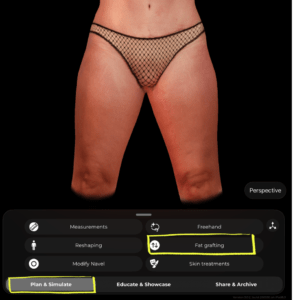
Selecting an Area #
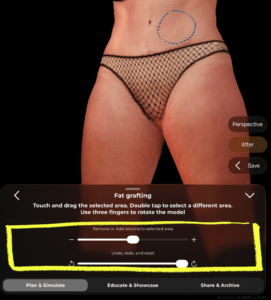
A blue dashed outline will appear on the 3D model indicating the currently selected area. This is the zone where volume will be added or removed.
- Double tap on any area of the model to select a different zone
- Use three fingers to rotate the model and access different angles without losing your selection
 #
#

Adding or Removing Volume #
Once your area is selected, use the slider at the bottom of the panel:
- Drag toward + đến add volume (simulate fat grafting / volume enhancement)
- Drag toward − đến remove volume (simulate fat reduction in that area)
The changes appear in real time on the 3D model.
#
Undoing Changes #
Below the volume slider, you’ll find the Undo, redo, and reset controls:
- Sử dụng undo arrow to step back one change at a time
- Sử dụng redo arrow to reapply a change
- Drag the reset slider all the way to revert the area back to its original state
Reviewing the Result #
On the right side of the screen you’ll find two helpful buttons:
- After – tap to toggle between the original and simulated result so you can compare before and after
- Lưu – tap to save the current simulation state before moving on or sharing with the patient
Lời khuyên #
- Rotate the model to a flattering angle before selecting an area — this helps you target the right zone more precisely.
- You can apply fat grafting to multiple areas in the same session by double tapping to switch between zones.
- Sử dụng After toggle during the consultation to walk the patient through the expected result in a clear, visual way.
Kết luận #
Arbrea Body cho phép bạn và bệnh nhân hình dung được kết quả phẫu thuật thực tế trước khi tiến hành phẫu thuật, từ đó bệnh nhân sẽ sẵn sàng tiến hành phẫu thuật.




 English
  Portuguese
  Italian
  Spanish
  German
  Arabic
  French
  Korean
  Albanian
  Thai
Thai  Hindi
Hindi  Vietnamese
  Japanese