
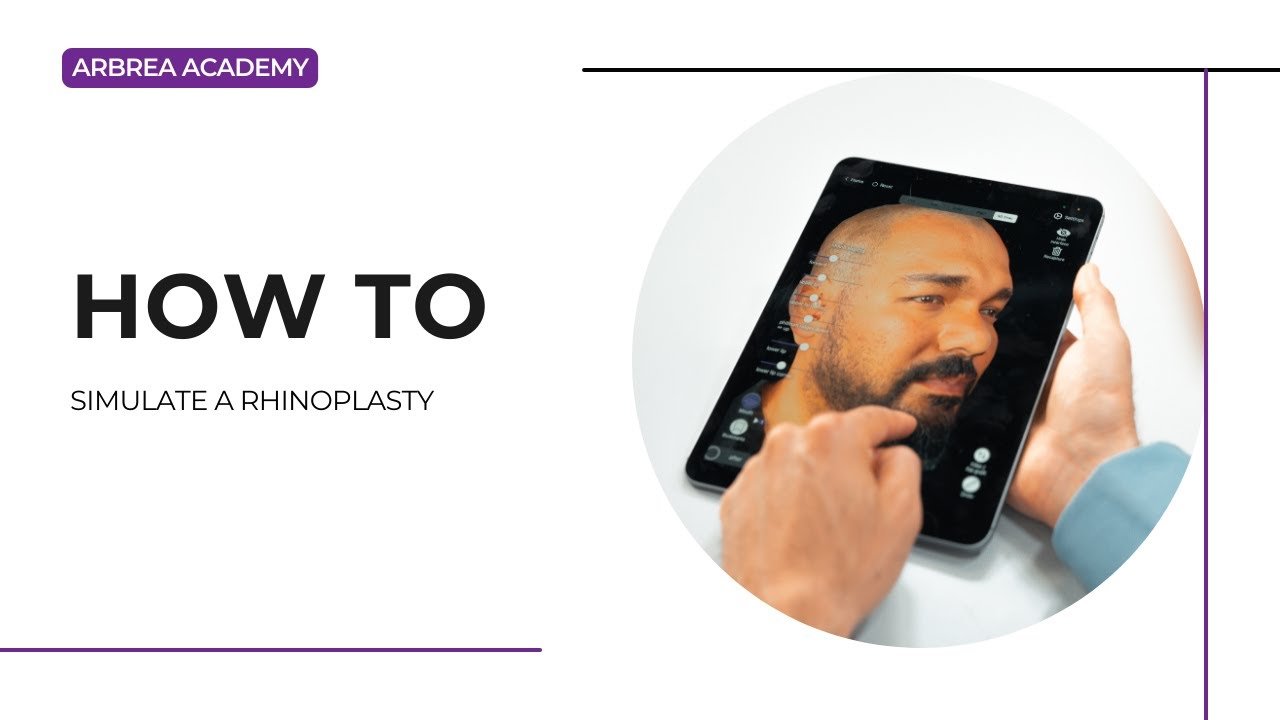
Arbrea Face offers an intuitive and comprehensive guide on how to simulate a rhinoplasty, enabling plastic surgeons to analyze, modify, and visualize nasal enhancements with precision. This guide walks you through the step-by-step process of using measurement tools, freehand adjustments, and before-and-after comparisons to enhance pre-operative consultations and improve patient communication..
Capturing the Patient’s Facial Scan #
- Use an iPhone or iPad with a high-quality camera.
- Đảm bảo good natural lighting cho optimal scan accuracy.
- No need for an internet connection or an external scanner—Arbrea’s AI ensures accurate 3D modeling.
Using the Measurement and Distance Tools #
- Trong top menu, select the Công cụ đo lường.
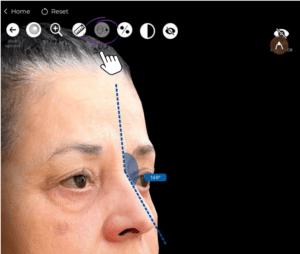
2. Analyze the angles and proportions of the nose.
3. Once you’ve assessed the nose, determine the best approach for the simulation.
Defining the Nose with Built-in Tools #
- Trong left-side menu, select the Nose Tool.
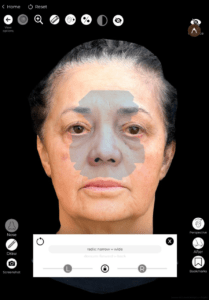
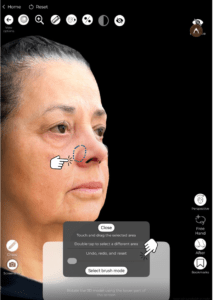
2. Choose from predefined nose modification options to adjust nasal structure quickly.
3. If the default tools don’t provide the desired result, use freehand modifications cho greater precision.
Customizing the Nose with Freehand Modifications #
For more precise adjustments, use the Công cụ Freehand, which offers two methods:
1. Using the Brush Tool for Smooth Modifications #
- Chọn Công cụ Freehand and choose Brush Mode.
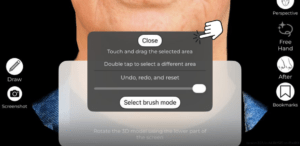
2. Adjust the kích thước cọ:
-
- A larger brush smoothens broad areas.
- A smaller brush cung cấp detailed modifications (e.g., nostrils, tip).
3. Use your finger to sculpt the nose:
-
- Raise or lower the nasal tip.
- Refine the nasal dorsum (bridge).
- Narrow or adjust the nostrils.
2. Using the Select Area Mode for Targeted Adjustments #
- Select Chế độ khu vực in the Freehand Tool.
- Draw directly on the area you want to modify.
- Điều chỉnh asymmetrically if needed, repeating the process on both sides.
- Combine this with the brush tool for finer sculpting.
If you’re not satisfied with any changes, simply use the undo button to refine the results.
Comparing the Before and After Simulation #
Nhấp vào Nút Before & After to toggle between the original and modified nose.
Review the improvements in contour, projection, and symmetry cùng bệnh nhân.
Cung cấp realistic expectations by showing So sánh song song.
Kết luận #
Phần how to simulate a rhinoplasty trong Arbrea Face đơn giản hóa nasal analysis and modification với precise measurement tools, customizable adjustments, and interactive before-and-after comparisons. Bằng cách sử dụng freehand tools, proportion analysis, and simulation refinements, các bác sĩ phẫu thuật có thể cải thiện quá trình tư vấn và đạt được kết quả chính xác Chuẩn bị trước khi phẫu thuật.
Để biết thêm hướng dẫn, hãy xem video Hướng dẫn đầy đủ video dưới đây.





 English
  Portuguese
  Italian
  Spanish
  German
  Arabic
  French
  Korean
  Albanian
  Thai
Thai  Hindi
Hindi  Vietnamese
  Japanese