
알브레아 바디 독자적인 방식을 사용합니다 “로컬 AI” 엔진 body simulator designed to deliver fast, realistic 3D simulations in real time.
아르브레아 스위트 열기 #
실행하세요 아르브레 스위트 시뮬레이션을 시작하려면 iPad의 앱을 엽니다.
Click Training Hub or New Patient #
탐험으로 시작하세요 단계별 안내 Arbrea Suite의 각 기능에 익숙해질 수 있도록 돕기 위해.
왜 그것이 중요할까요?
명확한 학습 경로와 모든 도구를 활용한 실습을 제공합니다.
Getting Started #
Once you’ve completed the simulation in Arbrea Body, you’re ready to share the results directly with your patient. Tap the Share & Archive tab at the bottom of the screen.
Accessing Screenshots & Gallery #
Inside Share & Archive, you’ll find:
- 스크린샷 – individual captures taken during the simulation session
- Gallery – a collected view of all your screenshots and any recorded videos from the session
 #
#

Selecting Content to Share #
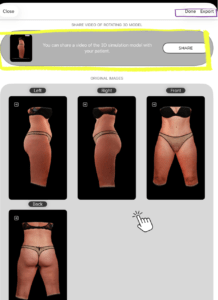
Browse through the gallery and tap to select the screenshots or videos you want to share with the patient. You can select multiple items at once — for example, a before/after screenshot alongside a simulation video.
#
Exporting #
Once you’ve made your selection, you have two export options:
- Export as ZIP – bundles all selected files into a single ZIP file, ideal for sending everything at once via email or a file sharing platform
- Individual Export – exports each selected file separately, useful if you want to share specific images one by one
#

Tips #
- Take screenshots at key moments during the simulation — different angles, before/after views — so you have a rich gallery to share with the patient afterward.
- Videos are especially impactful for patients, as they can see the simulation from multiple angles in motion.
- The ZIP export is the most convenient option when sharing a full consultation summary with a patient.
결론 #
알브레아 바디 상담 전에 귀하와 환자가 현실적인 신체 결과를 시각적으로 확인할 수 있게 해 주어 환자가 다음 단계로 나아갈 준비를 할 수 있도록 합니다.




 English
  Portuguese
  Italian
  Spanish
  German
  Arabic
  French
  Korean
  Albanian
  Thai
Thai  Hindi
Hindi