
Once your myArbrea account is activated, you can easily create or input your myArbrea code directly within 아르브레 스위트. This enables seamless integration and personalized patient experiences through your branded landing page.
This guide walks you through the quick steps to add your myArbrea code.
아르브레아 스위트 열기 #
실행하세요 아르브레 스위트 app on your iPad to begin managing your myArbrea integration.
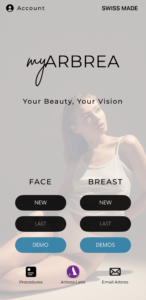
내 아르브레아 클릭하기 #
From the home dashboard, tap on the myArbrea button to access its features.
설정으로 이동 #
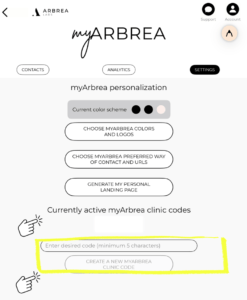
이동하기 설정 tab within the myArbrea 인터페이스.

Enter the Code #
Input it the desired myArbrea code into the designated field.
Click “Create a New myArbrea Code” #
If you don’t have a code yet, tap “Create a new myArbrea code” to generate one automatically.
Receive Notification #
Once the code is generated or entered, you’ll receive an on-screen notification confirming that your myArbrea code has been successfully created or linked.
결론 #
Adding or generating your myArbrea code through Arbrea Suite ensures your tools are fully integrated and ready for personalized patient engagement. In just a few taps, you unlock a smoother consultation workflow and a more professional online presence.




 English
  Portuguese
  Italian
  Spanish
  German
  Arabic
  French
  Korean
  Albanian
  Thai
Thai  Hindi
Hindi