Corpo Arbrea usa un proprietario “Motore IA locale simulatore di corpi progettato per fornire simulazioni 3D veloci e realistiche in tempo reale.
Lo strumento per il trapianto di grasso in Corpo Arbrea consente a chirurghi e professionisti estetici di simulare questo processo in tempo reale sulla scansione corporea 3D del paziente, prima che venga eseguita qualsiasi procedura. Ciò significa che i pazienti possono comprendere visivamente quale potrebbe essere il risultato, rendendolo uno strumento potente per stabilire aspettative realistiche e aumentare la fiducia durante la consulenza. Anziché fare affidamento su descrizioni verbali o su foto generiche prima/dopo, i professionisti possono mostrare una simulazione personalizzata e specifica per il paziente con pochi tocchi.
Suite Arbrea aperta #
Avviare il Suite Arbrea app sul tuo iPad per iniziare la simulazione.
Iniziare #
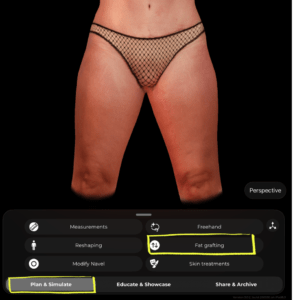
Una volta che la scansione del paziente è pronta, assicurati di essere in Pianifica e Simula scheda in fondo allo schermo. Dal menu degli strumenti, tocca Innesto di grasso.
Selezionare un'area #
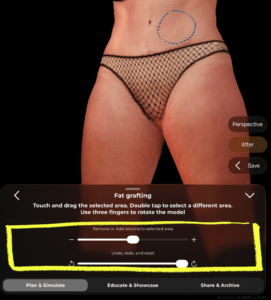
Un contorno tratteggiato blu apparirà sul modello 3D indicando l'area attualmente selezionata. Questa è la zona dove verrà aggiunto o rimosso volume.
- Doppio tocco su qualsiasi area del modello per selezionare una zona diversa
- Usa tre dita per ruotare il modello e accedere a diverse angolazioni senza perdere la selezione
 #
#

Aggiungere o Rimuovere Volume #
Una volta selezionata la tua area, usa il cursore in fondo al pannello:
- Trascina verso + a aggiungi volume (simulazione di innesto di grasso / miglioramento del volume)
- Trascina verso − a rimuovi volume (simulare la riduzione del grasso in quell'area)
Le modifiche appaiono in tempo reale sul modello 3D.
#
Annulla modifiche #
Sotto il cursore del volume troverai il Annulla, Ripristina e Reimposta controlli:
- Utilizzare il annulla freccia per tornare indietro un cambiamento alla volta
- Utilizzare il rifare freccia per riapplicare una modifica
- Trascina il cursore di ripristino fino in fondo per riportare l'area al suo stato originale
Revisione del risultato #
Sul lato destro dello schermo troverai due pulsanti utili:
- Dopo – tocca per alternare tra il risultato originale e quello simulato in modo da poter confrontare prima e dopo
- Risparmiare – tocca per salvare lo stato corrente della simulazione prima di passare o condividerlo con il paziente
Consigli #
- Ruota il modello con un'angolazione che lo valorizzi prima di selezionare un'area: questo ti aiuterà a individuare la zona giusta con maggiore precisione.
- Puoi applicare la correzione con innesto di grasso in più aree nella stessa sessione con un doppio tocco per passare da una zona all'altra.
- Utilizzare il Dopo alternare durante la consulenza per guidare il paziente attraverso il risultato atteso in modo chiaro e visivo.
Conclusione #
Corpo Arbrea consente a te e ai pazienti di visualizzare risultati corporei realistici prima della consulenza, così i pazienti sono preparati ad andare avanti.




 EN
EN  PT
PT  IT
IT  ES
ES  DE
DE