メインコンテンツへスキップ
検索するには「Enter」キーを押すか、「ESC」キーを押して閉じます。
閉じる検索
Arbrea Labs
メニュー
  • 解決策
    • 解決策
    • 解決策
      • プラスチック外科医のために
      • 審美医向け
      • フェイシャルインジェクター用
  • 概要
    • 私たちのこと
    • 私たちのこと
      • 私たちについて
      • Arbreaヘルプ
      • キャリア
      • お問い合わせ
      • パートナー
  • 私たちが築くもの
    • 私たちが築くもの
    • 私たちが築くもの
      • アーブレア スイート
      • アーブレア・ブラスト
      • Arbrea Face
      • ARBREA BODY
      • myArbrea
      • Arbrea x Mentor
      • 外科用プラットフォーム
  • リソース
    • リソース
    • リソース
      • 出版物
      • Arbrea Blog
      • マーケティング&セールスに関するヒント
      • 新着情報
  • パートナープログラム
  • 信頼できる
  • JA
    • EN
    • ES
    • IT
    • DE
    • PT
    • AR
    • FR
    • KO
    • TH
    • HI
    • SQ
    • VI
  • 無料でお試しください
  • 外科用プラットフォーム
  • 解決策
    • 解決策
    • 解決策
      • プラスチック外科医のために
      • 審美医向け
      • フェイシャルインジェクター用
  • 概要
    • 私たちのこと
    • 私たちのこと
      • 私たちについて
      • Arbreaヘルプ
      • キャリア
      • お問い合わせ
      • パートナー
  • 私たちが築くもの
    • 私たちが築くもの
    • 私たちが築くもの
      • アーブレア スイート
      • アーブレア・ブラスト
      • Arbrea Face
      • ARBREA BODY
      • myArbrea
      • Arbrea x Mentor
      • 外科用プラットフォーム
  • リソース
    • リソース
    • リソース
      • 出版物
      • Arbrea Blog
      • マーケティング&セールスに関するヒント
      • 新着情報
  • パートナープログラム
  • 信頼できる
  • JA
    • EN
    • ES
    • IT
    • DE
    • PT
    • AR
    • FR
    • KO
    • TH
    • HI
    • SQ
    • VI
  • 無料でお試しください
  • 外科用プラットフォーム
  • Facebook
  • LinkedIn
  • YouTube
  • インスタグラム

Arbrea Suite Academy

5
  • How to Share a Case from Arbrea Suite to myArbrea
  • How to Use Arbrea Suite
  • How to Integrate Arbrea into Your Consultation
  • How to Activate Private Cloud Options
  • How to Customize Arbrea Suite to Your Brand 

Arbrea Breast Academy

22
  • How to Use Arbrea Breast – An Overview
  • How to Create a 3D Model for the Breast
  • How to Simulate in AR & 3D Mode
  • How to Use Sculpting Mode
  • How to Use the Implants Catalog
  • How to Set Up the Implant Brands
  • How to Use the Shape Tool
  • How to Use Bookmarks to Compare Different Implants
  • How to Simulate a Mastopexy With or Without Implants
  • How to Use Measurements
  • How to Use the Scars Tool
  • How to Use the Fat Grafting Tool
  • How to Share the Breast Simulation with Patients
  • How to Simulate Breast Reconstruction
  • How to Simulate Tuberous Breast
  • How to Simulate a Gynecomastia
  • How to Simulate an Implant Replacement 
  • How to Capture Complex Cases
  • How to Import a Model from myArbrea
  • How to Mirror to an External Screen
  • How to Order Implants
  • How to Simulate Asymmetries

Arbrea Face Academy

12
  • How to Use Arbrea Face
  • How to Make a 3D Model
  • How to Use the Automatic Measurements Tools
  • How to Use the New Free Hand Tool
  • How to Use the Annotation Tool for Injectables
  • How to Simulate a Rhinoplasty
  • How to Simulate a Facelift
  • How to Simulate Lip Procedures
  • How to Simulate Cheek Procedures
  • How to Share the Face Simulation with Patients
  • How to Simulate Chin Procedures
  • How to Simulate a Bichectomy

myArbrea

13
  • How to Add a myArbrea Code from Arbrea Suite
  • How to Request the Activation of myArbrea
  • How to Check Your myArbrea Analytics
  • How to Check and Contact Your myArbrea Users
  • How to Share a Case from myArbrea to Arbrea Suite
  • How to Use myArbrea
  • Why Should You Use myArbrea
  • What Are the Benefits of myArbrea to Current Users 
  • What Kind of Links You Can Include on myArbrea
  • How to Market myArbrea on Instagram and Other Media
  • How to Use myArbrea to Reduce No-Show Rate
  • How to Use myArbrea in Remote Consultations
  • How to Integrate myArbrea in Your Website

アーブレアボディ

7
  • How to Use the Fat Grafting Tool
  • How to Capture the Best Body Images for Simulation
  • How to Share the Body Simulation with Patients
  • How to Use Body Measurements
  • How can I simulate an Abdominoplasty (Tummy Tuck)?
  • How do I create a 3D Body Model?
  • How does Arbrea Body work? (Overview)
View Categories
  • ホーム
  • Docs
  • Arbrea Breast Academy
  • How to Simulate Asymmetries

How to Simulate Asymmetries

アーブレア・ブラスト offers an intuitive and comprehensive guide on how to simulate asymmetries, enabling surgeons to accurately analyze, plan, and visualize surgical adjustments using AI-powered simulations. This guide walks you through the step-by-step process of measuring asymmetries, adjusting breast volume, selecting implants, modifying the nipple position, and visualizing surgical scars to enhance pre-operative consultations.

Selecting the Measurements #

  1. Open アーブレア スイート and select your patient’s image or 3D scan.
  2. Click on the 測定値 tool to analyze breast volume differences.
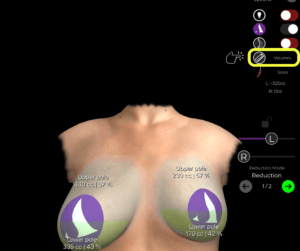
Volume Differences Arbrea Suite

   3. By clicking again, you can switch between measurement mode and volume analysis to assess the asymmetry accurately.
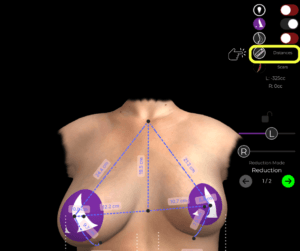
Measurement Tool Arbrea Suite

Once measurements are visible, we can move on to adjusting the volume.

Adjusting Breast Volume for Symmetry #

How to Change from Measurements to Volume Mode #

  1. Activate Volume Mode by switching from measurements へ volume settings.
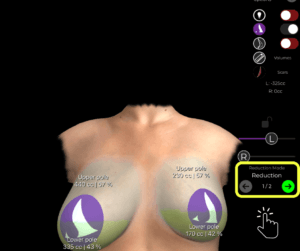
  2. The software will automatically enter Reduction Mode (Step 1), which is used for:
    • Volume reduction
    • Mastopexy (breast lift)
    • Implant replacement planning

Reduction Mode Arbrea Suite

How to Reduce the Volume of Each Breast Individually #

By default, both breasts adjust together, but asymmetry correction requires independent adjustments:

  1. Deactivate the Lock – This unlocks the ability to modify each breast separately.
  2. Reduce the right breast volume significantly.
  3. Reduce the left breast volume slightly to maintain symmetry.

Slider Lock Arbrea Suite

At this stage, the initial correction of asymmetry is complete.

Choosing the Right Implant #

Once volume correction is done, we move to Step 2, where we select implants to restore shape and projection.

Augmentation Mode Arbrea Suite

How to Choose an Implant from the Catalog #

  1. Open the Implants Catalog.
  2. Select a brand (e.g., メンター).
  3. Filter options based on:
    • Shape (Anatomic, Round)
    • Projection (Moderate, High, Extra High)
  4. Choose an appropriate implant and apply it to the patient.
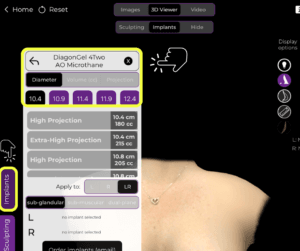
Choosing an Implant from the Catalog in Arbrea Suite

If the implant placement is not perfect, adjustments can be made using the Shape Tool.

Adjusting Implant Position and Lift #

Once the implant is applied, we can refine its position, lift, and overall symmetry.

How to Adjust the Implant and Lift #

  1. Open the Shape Tool.
  2. Use the sliders to:
    • Lift the breast for a more youthful position.
    • Increase fullness in the upper pole if needed.
    • Move the implant to ensure correct alignment.
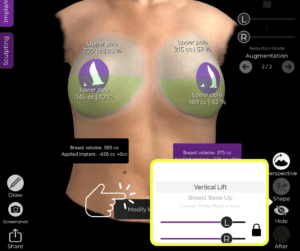
Adjust Implant With Shape Tool Arbrea Suite

After these refinements, the breast shape and symmetry are significantly improved.

Modifying the Nipples for a Natural Look #

To ensure perfect symmetry, it’s essential to reposition the Nipple-Areola Complex (NAC).

How to Adjust the Nipples #

  1. Open the NAC Tool (Nipple-Areola Complex Tool).
  2. Define the nipple size そして exact target position.
  3. Adjust the positioning for natural alignment with the new breast shape.

This ensures that both nipples are positioned symmetrically, complementing the surgical plan.

Displaying Surgical Scars #

アーブレア スイート does not show scars directly, as scar healing varies. However, it provides scar indicators to give patients a general idea of where scars will be.

Scar Indicator Arbrea Suite

How to Show and Hide Scars #

  1. Open the Scars Indicator Tool to place surgical scar markers.
  2. Use Bookmark to save the results.
  3. Hide the scars if necessary to present a clean simulation to the patient.

Scar Location Modifier Arbrea Suite

This helps 現実的な期待を設定する while maintaining a professional and aesthetic visualization.

Presenting the Results to the Patient #

How to Hide the Tools for a Clear Patient View #

Once you’ve finalized the simulation:

Hide unnecessary tools to focus on the results.
Lend the iPad to the patient for an interactive experience.
If needed, return to the implant selection and refine the results further.

Hide Tools to Focus on the Final Result Arbrea Suite

This ensures a smooth and engaging consultation where patients can clearly understand the before-and-after transformation.

結論 #

アーブレア・ブラスト simplifies the way on how to simulate asymmetries with precise measurement analysis, volume adjustments, and implant customization. By utilizing nipple position refinements, scar visualization, and AI-powered simulations, surgeons can enhance consultations and achieve accurate pre-operative planning.

For more guidance, watch the full video tutorial below.
YouTube thumbnailYouTube icon

Updated on 3月 28, 2025
How to Order ImplantsHow to Use Arbrea Breast – An Overview
Table of Contents
  • Selecting the Measurements
  • Adjusting Breast Volume for Symmetry
    • How to Change from Measurements to Volume Mode
    • How to Reduce the Volume of Each Breast Individually
  • Choosing the Right Implant
    • How to Choose an Implant from the Catalog
  • Adjusting Implant Position and Lift
    • How to Adjust the Implant and Lift
  • Modifying the Nipples for a Natural Look
    • How to Adjust the Nipples
  • Displaying Surgical Scars
    • How to Show and Hide Scars
  • Presenting the Results to the Patient
    • How to Hide the Tools for a Clear Patient View
  • 結論
  • Instagram
  • LinkedIn
  • YouTube
  • 私たちについて
  • Arbrea ヘルプセンター
  • キャリア
  • プライバシーポリシー
  • 印
  • 利用規約
  • お問い合わせ
  • 無料でお試しください
  • デモを予約する
  • アーブレア・ブラスト
  • Arbrea Face
  • アーブレアボディ
  • myArbrea
  • 外科用プラットフォーム

今後のイベント

10月 15
10月15日 - 10月 18

プラスチック外科の会 2026

10月 15
10月15日 - 10月 18

XXIII Congreso Dominicano de Cirugía Plástica

カレンダーを表示
弊社はウェブサイト上でクッキーを使用し、お客様の好みを記憶し、再度訪問される際に最も適切な体験を提供します。「同意する」をクリックすると、すべてのクッキーの使用に同意したものとみなされます。.
私の個人情報を販売しないでください.
クッキーの設定受け入れる
同意の管理

プライバシーの概要

このウェブサイトは、ウェブサイトのナビゲーション中にユーザーの体験を向上させるためにクッキーを使用しています。そのうち、必要なものとして分類されるクッキーは、ウェブサイトの基本機能の正常な動作に不可欠なため、ブラウザに保存されます。また、このウェブサイトの利用状況を分析および理解するのに役立つ第三者のクッキーも使用しています。これらのクッキーは、お客様の同意なしにはお客様のブラウザに保存されることはありません。また、これらのクッキーのオプトアウトも可能です。ただし、これらのクッキーの一部をオプトアウトすると、閲覧環境に影響が生じる可能性があります。.
必要
常に有効
必須のクッキーは、ウェブサイトの正常な機能のために絶対に必要です。これらのクッキーは、匿名でウェブサイトの基本的な機能とセキュリティ機能を保証します。.
クッキー期間説明
cookielawinfo-チェックボックス分析11ヶ月このクッキーは GDPR Cookie Consent プラグインによって設定されます。このクッキーは、「分析」カテゴリのクッキーに対するユーザーの同意を保存するために使用されます。.
cookielawinfo-チェックボックス機能11ヶ月このクッキーは、GDPRのCookie同意機能により、「機能的」カテゴリのクッキーに対するユーザーの同意を記録するために設定されます。.
cookielawinfo-チェックボックス必須11ヶ月このクッキーは、GDPR Cookie Consent プラグインによって設定されます。このクッキーは、「必須」カテゴリのクッキーに対するユーザーの同意を保存するために使用されます。.
cookielawinfo-チェックボックス-その他11ヶ月このクッキーは GDPR Cookie Consent プラグインによって設定されます。このクッキーは、「その他」カテゴリのクッキーに対するユーザーの同意を保存するために使用されます。.
cookielawinfo-チェックボックスの性能11ヶ月このクッキーは、GDPR Cookie Consent プラグインによって設定されます。このクッキーは、「パフォーマンス」カテゴリのクッキーに対するユーザーの同意を保存するために使用されます。.
viewed_cookie_policy11ヶ月このクッキーは GDPR Cookie Consent プラグインによって設定され、ユーザーがクッキーの使用に同意したかどうかの保存に使用されます。このクッキーには個人データは保存されません。.
機能的
機能的なクッキーは、ソーシャルメディアプラットフォームでのウェブサイトコンテンツの共有、フィードバックの収集、およびその他のサードパーティ機能などの特定の機能の実行を支援します。.
パフォーマンス
パフォーマンスクッキーは、ウェブサイトの主要なパフォーマンス指標を理解し分析するために使用され、訪問者により良いユーザーエクスペリエンスを提供することに役立ちます。.
アナリティクス
分析型クッキーは、訪問者がウェブサイトとどのようにやり取りしているかを理解するために使用されます。これらのクッキーは、訪問者数、バウンス率、トラフィックソースなどの指標に関する情報を提供するのに役立ちます。.
広告
広告クッキーは、訪問者に関連性の高い広告やマーケティングキャンペーンを提供するために使用されます。これらのクッキーは、訪問者を複数のウェブサイトを横断して追跡し、カスタマイズされた広告を提供するために情報を収集します。.
その他
その他の未分類のクッキーは、分析中であり、まだカテゴリーに分類されていません。.
保存&承認
Powered by CookieYesのロゴ
We've detected you might be speaking a different language. Do you want to change to:
言語をEnglishに変更 English
言語をPortugueseに変更 Portuguese
言語をItalianに変更 Italian
言語をSpanishに変更 Spanish
言語をGermanに変更 German
言語をArabicに変更 Arabic
言語をFrenchに変更 French
言語をKoreanに変更 Korean
言語をAlbanianに変更 Albanian
言語をThaiに変更 Thai
言語をHindiに変更 Hindi
言語をVietnameseに変更 Vietnamese
Japanese
Change Language
Close and do not switch language