
Cuerpo Arbrea usa un propietario “Motor de IA local simulador de cuerpos diseñado para ofrecer simulaciones 3D rápidas y realistas en tiempo real.
La herramienta de injerto de grasa en Cuerpo Arbrea permite a los cirujanos y a los profesionales de la estética simular este proceso en tiempo real sobre un escaneo corporal 3D propio del paciente, antes de que tenga lugar cualquier procedimiento. Esto significa que los pacientes pueden comprender visualmente cómo podría ser el resultado, convirtiéndolo en una herramienta poderosa para establecer expectativas realistas y generar confianza en la consulta. En lugar de depender de descripciones verbales o fotos genéricas de antes y después, los profesionales pueden mostrar una simulación personalizada y específica para el paciente con solo unos pocos toques.
Suite abierta Arbrea #
Inicie el Suite Arbrea aplicación en tu iPad para comenzar la simulación.
Primeros pasos #
Una vez que tenga su escaneo de paciente listo, asegúrese de estar en el Planificar y Simular pestaña en la parte inferior de la pantalla. En el menú de herramientas, toca Injertos de grasa.
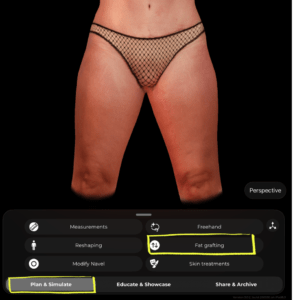
Seleccionando un Área #
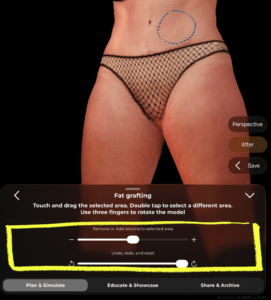
Aparecerá un contorno azul discontinuo en el modelo 3D que indicará el área actualmente seleccionada. Esta es la zona en la que se añadirá o eliminará volumen.
- Tocar dos veces en cualquier área del modelo para seleccionar una zona diferente
- Usa tres dedos rotar el modelo y acceder a diferentes ángulos sin perder tu selección
 #
#

Añadir o Eliminar Volumen #
Una vez que su área esté seleccionada, utilice el control deslizante en la parte inferior del panel:
- Arrastrar hacia + a añadir volumen (simular injerto de grasa / aumento de volumen)
- Arrastrar hacia − a quitar volumen (simular la reducción de grasa en esa zona)
Los cambios aparecen en tiempo real en el modelo 3D.
#
Deshacer Cambios #
Debajo del control deslizante de volumen, encontrarás el Deshacer, rehacer y restablecer controles:
- Utiliza el deshacer flecha para retroceder un cambio a la vez
- Utiliza el rehacer flecha para volver a aplicar un cambio
- Arrastra el control deslizante de reinicio hasta el final para devolver el área a su estado original
Revisando el resultado #
En el lado derecho de la pantalla encontrará dos útiles botones:
- Después – toca para alternar entre el resultado original y el simulado para que puedas comparar antes y después
- Guardar – toca para guardar el estado actual de la simulación antes de continuar o compartirlo con el paciente
Consejos #
- Rote el modelo a un ángulo favorecedor antes de seleccionar un área; esto le ayuda a apuntar a la zona correcta con mayor precisión.
- Puedes aplicar el injerto de grasa en múltiples áreas en la misma sesión con doble toque para cambiar entre zonas.
- Utiliza el Después alternar durante la consulta para guiar al paciente a través del resultado esperado de manera clara y visual.
Conclusión #
Cuerpo Arbrea permite que usted y los pacientes visualicen resultados corporales realistas antes de la consulta, para que los pacientes estén preparados para seguir adelante.




 EN
EN  PT
PT  IT
IT  ES
ES  DE
DE