Hit enter to search or ESC to close
Close Search
आर्ब्रिया लैब्स
Menu
  • समाधान
    • समाधान
    • समाधान
      • प्लास्टिक सर्जन के लिए
      • एस्थेटिक डॉक्टरों के लिए
      • फेशियल इंजेक्टर के लिए
  • के बारे में
    • हमारे बारे में
    • हमारे बारे में
      • हमारे बारे में
      • आर्ब्रि मदद
      • करियर
      • संपर्क करें
      • साझेदार
  • हम क्या बनाते हैं
    • हम क्या बनाते हैं
    • हम क्या बनाते हैं
      • Arbrea Suite
      • आर्ब्रिया ब्रेस्ट
      • आर्ब्रिया फेस
      • ARBREA BODY
      • माईआर्ब्रेआ
      • आर्ब्रिया एक्स मेंटॉर
      • सर्जन प्लेटफ़ॉर्म
  • संसाधन
    • संसाधन
    • संसाधन
      • प्रकाशन
      • आर्ब्रिया ब्लॉग
      • मार्केटिंग और बिक्री युक्तियाँ
      • नया क्या है
  • पार्टनर प्रोग्राम
  • विश्वसनीय
  • HI
    • EN
    • ES
    • IT
    • DE
    • PT
    • AR
    • FR
    • KO
    • TH
    • SQ
  • निःशुल्क शुरुआत करें
  • सर्जन प्लेटफ़ॉर्म
  • समाधान
    • समाधान
    • समाधान
      • प्लास्टिक सर्जन के लिए
      • एस्थेटिक डॉक्टरों के लिए
      • फेशियल इंजेक्टर के लिए
  • के बारे में
    • हमारे बारे में
    • हमारे बारे में
      • हमारे बारे में
      • आर्ब्रि मदद
      • करियर
      • संपर्क करें
      • साझेदार
  • हम क्या बनाते हैं
    • हम क्या बनाते हैं
    • हम क्या बनाते हैं
      • Arbrea Suite
      • आर्ब्रिया ब्रेस्ट
      • आर्ब्रिया फेस
      • ARBREA BODY
      • माईआर्ब्रेआ
      • आर्ब्रिया एक्स मेंटॉर
      • सर्जन प्लेटफ़ॉर्म
  • संसाधन
    • संसाधन
    • संसाधन
      • प्रकाशन
      • आर्ब्रिया ब्लॉग
      • मार्केटिंग और बिक्री युक्तियाँ
      • नया क्या है
  • पार्टनर प्रोग्राम
  • विश्वसनीय
  • HI
    • EN
    • ES
    • IT
    • DE
    • PT
    • AR
    • FR
    • KO
    • TH
    • SQ
  • निःशुल्क शुरुआत करें
  • सर्जन प्लेटफ़ॉर्म
  • फ़ेसबुक
  • लिंक्डइन
  • यूट्यूब
  • इंस्टाग्राम

Arbrea Suite Academy

5
  • How to Share a Case from Arbrea Suite to myArbrea
  • How to Use Arbrea Suite
  • How to Integrate Arbrea into Your Consultation
  • How to Activate Private Cloud Options
  • How to Customize Arbrea Suite to Your Brand 

Arbrea Breast Academy

22
  • How to Use Arbrea Breast – An Overview
  • How to Create a 3D Model for the Breast
  • How to Simulate in AR & 3D Mode
  • How to Use Sculpting Mode
  • How to Use the Implants Catalog
  • How to Set Up the Implant Brands
  • How to Use the Shape Tool
  • How to Use Bookmarks to Compare Different Implants
  • How to Simulate a Mastopexy With or Without Implants
  • How to Use Measurements
  • How to Use the Scars Tool
  • How to Use the Fat Grafting Tool
  • How to Share the Breast Simulation with Patients
  • How to Simulate Breast Reconstruction
  • How to Simulate Tuberous Breast
  • How to Simulate a Gynecomastia
  • How to Simulate an Implant Replacement 
  • How to Capture Complex Cases
  • How to Import a Model from myArbrea
  • How to Mirror to an External Screen
  • How to Order Implants
  • How to Simulate Asymmetries

Arbrea Face Academy

12
  • How to Use Arbrea Face
  • How to Make a 3D Model
  • How to Use the Automatic Measurements Tools
  • How to Use the New Free Hand Tool
  • How to Use the Annotation Tool for Injectables
  • How to Simulate a Rhinoplasty
  • How to Simulate a Facelift
  • How to Simulate Lip Procedures
  • How to Simulate Cheek Procedures
  • How to Share the Face Simulation with Patients
  • How to Simulate Chin Procedures
  • How to Simulate a Bichectomy

माईआर्ब्रेआ

13
  • How to Add a myArbrea Code from Arbrea Suite
  • How to Request the Activation of myArbrea
  • How to Check Your myArbrea Analytics
  • How to Check and Contact Your myArbrea Users
  • How to Share a Case from myArbrea to Arbrea Suite
  • How to Use myArbrea
  • Why Should You Use myArbrea
  • What Are the Benefits of myArbrea to Current Users 
  • What Kind of Links You Can Include on myArbrea
  • How to Market myArbrea on Instagram and Other Media
  • How to Use myArbrea to Reduce No-Show Rate
  • How to Use myArbrea in Remote Consultations
  • How to Integrate myArbrea in Your Website

आर्ब्रेया बॉडी

7
  • How to Use the Fat Grafting Tool
  • How to Capture the Best Body Images for Simulation
  • How to Share the Body Simulation with Patients
  • How to Use Body Measurements
  • How can I simulate an Abdominoplasty (Tummy Tuck)?
  • How do I create a 3D Body Model?
  • How does Arbrea Body work? (Overview)
View Categories
  • होम
  • Docs
  • Arbrea Breast Academy
  • How to Simulate Asymmetries

How to Simulate Asymmetries

आर्ब्रिया ब्रेस्ट offers an intuitive and comprehensive guide on how to simulate asymmetries, enabling surgeons to accurately analyze, plan, and visualize surgical adjustments using AI-powered simulations. This guide walks you through the step-by-step process of measuring asymmetries, adjusting breast volume, selecting implants, modifying the nipple position, and visualizing surgical scars to enhance pre-operative consultations.

Selecting the Measurements #

  1. Open Arbrea Suite and select your patient’s image or 3D scan.
  2. Click on the Measurements tool to analyze breast volume differences.
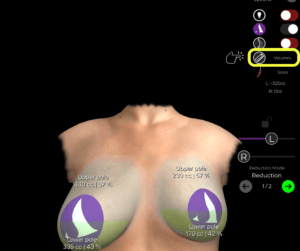
Volume Differences Arbrea Suite

   3. By clicking again, you can switch between measurement mode and volume analysis to assess the asymmetry accurately.
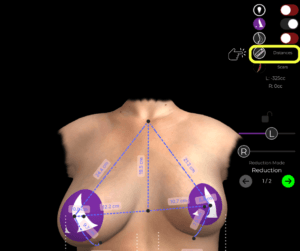
Measurement Tool Arbrea Suite

Once measurements are visible, we can move on to adjusting the volume.

Adjusting Breast Volume for Symmetry #

How to Change from Measurements to Volume Mode #

  1. Activate Volume Mode by switching from measurements to volume settings.
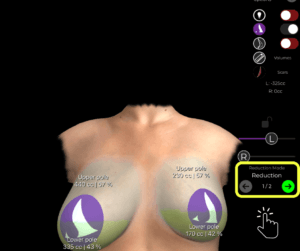
  2. The software will automatically enter Reduction Mode (Step 1), which is used for:
    • Volume reduction
    • Mastopexy (breast lift)
    • Implant replacement planning

Reduction Mode Arbrea Suite

How to Reduce the Volume of Each Breast Individually #

By default, both breasts adjust together, but asymmetry correction requires independent adjustments:

  1. Deactivate the Lock – This unlocks the ability to modify each breast separately.
  2. Reduce the right breast volume significantly.
  3. Reduce the left breast volume slightly to maintain symmetry.

Slider Lock Arbrea Suite

At this stage, the initial correction of asymmetry is complete.

Choosing the Right Implant #

Once volume correction is done, we move to Step 2, where we select implants to restore shape and projection.

Augmentation Mode Arbrea Suite

How to Choose an Implant from the Catalog #

  1. Open the Implants Catalog.
  2. Select a brand (e.g., Mentor).
  3. Filter options based on:
    • Shape (Anatomic, Round)
    • Projection (Moderate, High, Extra High)
  4. Choose an appropriate implant and apply it to the patient.
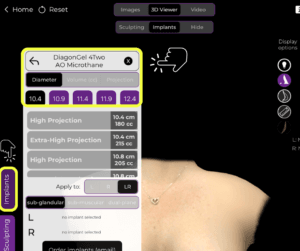
Choosing an Implant from the Catalog in Arbrea Suite

If the implant placement is not perfect, adjustments can be made using the Shape Tool.

Adjusting Implant Position and Lift #

Once the implant is applied, we can refine its position, lift, and overall symmetry.

How to Adjust the Implant and Lift #

  1. Open the Shape Tool.
  2. Use the sliders to:
    • Lift the breast for a more youthful position.
    • Increase fullness in the upper pole if needed.
    • Move the implant to ensure correct alignment.
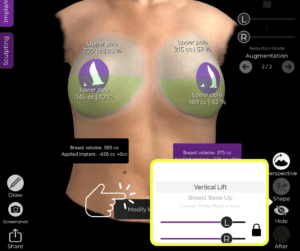
Adjust Implant With Shape Tool Arbrea Suite

After these refinements, the breast shape and symmetry are significantly improved.

Modifying the Nipples for a Natural Look #

To ensure perfect symmetry, it’s essential to reposition the Nipple-Areola Complex (NAC).

How to Adjust the Nipples #

  1. Open the NAC Tool (Nipple-Areola Complex Tool).
  2. Define the nipple size and exact target position.
  3. Adjust the positioning for natural alignment with the new breast shape.

This ensures that both nipples are positioned symmetrically, complementing the surgical plan.

Displaying Surgical Scars #

Arbrea Suite does not show scars directly, as scar healing varies. However, it provides scar indicators to give patients a general idea of where scars will be.

Scar Indicator Arbrea Suite

How to Show and Hide Scars #

  1. Open the Scars Indicator Tool to place surgical scar markers.
  2. Use Bookmark to save the results.
  3. Hide the scars if necessary to present a clean simulation to the patient.

Scar Location Modifier Arbrea Suite

This helps set realistic expectations while maintaining a professional and aesthetic visualization.

Presenting the Results to the Patient #

How to Hide the Tools for a Clear Patient View #

Once you’ve finalized the simulation:

Hide unnecessary tools to focus on the results.
Lend the iPad to the patient for an interactive experience.
If needed, return to the implant selection and refine the results further.

Hide Tools to Focus on the Final Result Arbrea Suite

This ensures a smooth and engaging consultation where patients can clearly understand the before-and-after transformation.

Conclusion #

आर्ब्रिया ब्रेस्ट simplifies the way on how to simulate asymmetries with precise measurement analysis, volume adjustments, and implant customization. By utilizing nipple position refinements, scar visualization, and AI-powered simulations, surgeons can enhance consultations and achieve accurate pre-operative planning.

For more guidance, watch the full video tutorial below.
YouTube thumbnailYouTube icon

Updated on मार्च 28, 2025
How to Order ImplantsHow to Use Arbrea Breast – An Overview
Table of Contents
  • Selecting the Measurements
  • Adjusting Breast Volume for Symmetry
    • How to Change from Measurements to Volume Mode
    • How to Reduce the Volume of Each Breast Individually
  • Choosing the Right Implant
    • How to Choose an Implant from the Catalog
  • Adjusting Implant Position and Lift
    • How to Adjust the Implant and Lift
  • Modifying the Nipples for a Natural Look
    • How to Adjust the Nipples
  • Displaying Surgical Scars
    • How to Show and Hide Scars
  • Presenting the Results to the Patient
    • How to Hide the Tools for a Clear Patient View
  • Conclusion
  • Instagram
  • LinkedIn
  • YouTube
  • हमारे बारे में
  • आर्ब्रिया सहायता केंद्र
  • करियर
  • गोपनीयता नीति
  • छाप
  • उपयोग की शर्तें
  • संपर्क करें
  • निःशुल्क शुरुआत करें
  • एक डेमो बुक करें
  • आर्ब्रिया ब्रेस्ट
  • आर्ब्रिया फेस
  • आर्ब्रेया बॉडी
  • माईआर्ब्रेआ
  • सर्जन प्लेटफ़ॉर्म

आगामी कार्यक्रम

अक्टूबर 15
१५ अक्टूबर - 18 अक्टूबर

प्लास्टिक सर्जरी द मीटिंग 2026

अक्टूबर 27
अक्टूबर 27 - 31 अक्टूबर

ISAPS वर्ल्ड कांग्रेस 2026

View Calendar
हम आपकी प्राथमिकताओं और बार-बार आने वाले विज़िट को याद रखकर आपको सबसे प्रासंगिक अनुभव देने के लिए हमारी वेबसाइट पर कुकीज़ का उपयोग करते हैं। “स्वीकार करें” पर क्लिक करके, आप सभी कुकीज़ के उपयोग की सहमति देते हैं।.
मेरी व्यक्तिगत जानकारी न बेचें.
कुकी सेटिंग्सAccept
सहमति प्रबंधित करें

गोपनीयता का परिचय

यह वेबसाइट आपके अनुभव को बेहतर बनाने के इनमें से, आवश्यक के रूप में वर्गीकृत कुकीज़ आपके ब्राउज़र में संग्रहीत की जाती हैं क्योंकि वे वेबसाइट की बुनियादी कार्यक्षमताओं के काम करने के लिए आवश्यक हैं। हम तृतीय-पक्ष कुकीज़ का भी उपयोग करते हैं जो हमें यह विश्लेषण करने और समझने में मदद करती हैं कि आप इस वेबसाइट का उपयोग कैसे करते हैं। ये कुकीज़ केवल आपकी सहमति से आपके ब्राउज़र में संग्रहीत की जाएंगी। आपके पास इन कुकीज़ को ना-पसंद (ऑप्ट-आउट) करने का विकल्प भी है। लेकिन इनमें से कुछ कुकीज़ को ना-पसंद करने से आपके ब्राउज़िंग अनुभव पर असर पड़ सकता है।.
आवश्यक
Always Enabled
आवश्यक कुकीज़ वेबसाइट के ठीक से काम करने के लिए पूरी तरह से आवश्यक हैं। ये कुकीज़ गुमनाम रूप से वेबसाइट की बुनियादी कार्यक्षमताओं और सुरक्षा सुविधाओं को सुनिश्चित करती हैं।.
CookieDurationDescription
cookielawinfo-checkbox-analytics11 महीनेयह कुकी जीडीपीआर कुकी सहमति प्लगइन द्वारा सेट की जाती है। इस कुकी का उपयोग "एनालिटिक्स" श्रेणी में कुकीज़ के लिए उपयोगकर्ता की सहमति को संग्रहीत करने के लिए किया जाता है।.
cookielawinfo-checkbox-functional11 महीनेयह कुकी जीडीपीआर कुकी सहमति द्वारा "कार्यात्मक" श्रेणी में कुकीज़ के लिए उपयोगकर्ता की सहमति को रिकॉर्ड करने के लिए सेट की जाती है।.
cookielawinfo-checkbox-necessary11 महीनेयह कुकी GDPR कुकी सहमति प्लगइन द्वारा सेट की जाती है। इस कुकी का उपयोग "आवश्यक" श्रेणी की कुकीज़ के लिए उपयोगकर्ता की सहमति को संग्रहीत करने के लिए किया जाता है।.
cookielawinfo-checkbox-others11 महीनेयह कुकी जीडीपीआर कुकी सहमति प्लगइन द्वारा सेट की जाती है। कुकी का उपयोग श्रेणी "अन्य" में कुकीज़ के लिए उपयोगकर्ता की सहमति को संग्रहीत करने के लिए किया जाता है।.
cookielawinfo-checkbox-performance11 महीनेयह कुकी जीडीपीआर कुकी सहमति प्लगइन द्वारा सेट की जाती है। कुकी का उपयोग "प्रदर्शन" श्रेणी में कुकीज़ के लिए उपयोगकर्ता की सहमति को संग्रहीत करने के लिए किया जाता है।.
कुकी_नीति_देखी_गई11 महीनेयह कुकी जीडीपीआर कुकी सहमति प्लगइन द्वारा सेट की जाती है और इसका उपयोग यह संग्रहीत करने के लिए किया जाता है कि उपयोगकर्ता ने कुकीज़ के उपयोग के लिए सहमति दी है या नहीं। यह किसी भी व्यक्तिगत डेटा को संग्रहीत नहीं करती है।.
कार्यात्मक
फ़ंक्शनल कुकीज़ कुछ कार्यक्षमताएँ करने में मदद करती हैं जैसे वेबसाइट की सामग्री को सोशल मीडिया प्लेटफ़ॉर्म पर साझा करना, प्रतिक्रियाएँ एकत्र करना और अन्य तृतीय-पक्ष सुविधाएँ।.
निष्पादन
परफ़ॉर्मेंस कुकीज़ का उपयोग वेबसाइट के मुख्य परफ़ॉर्मेंस इंडेक्स को समझने और उनका विश्लेषण करने के लिए किया जाता है, जिससे आगंतुकों को बेहतर यूजर एक्सपीरियंस प्रदान करने में मदद मिलती है।.
एनालिटिक्स
विश्लेषणात्मक कुकीज़ का उपयोग यह समझने के लिए किया जाता है कि आगंतुक वेबसाइट के साथ कैसे बातचीत करते हैं। ये कुकीज़ आगंतुकों की संख्या, बाउंस दर, ट्रैफ़िक स्रोत आदि मेट्रिक्स पर जानकारी प्रदान करने में मदद करती हैं।.
विज्ञापन
विज्ञापनों से जुड़ी कुकीज़ (ऐडवर्टाइजमेंट कुकीज़) का उपयोग आगंतुकों को प्रासंगिक विज्ञापन और विपणन अभियान प्रदान करने के लिए किया जाता है। ये कुकीज़ वेबसाइटों पर आगंतुकों को ट्रैक करती हैं और अनुकूलित विज्ञापन प्रदान करने के लिए जानकारी एकत्र करती हैं।.
अन्य
अन्य अवर्गीकृत कुकीज़ वे हैं जिनका विश्लेषण किया जा रहा है और जिन्हें अभी तक किसी श्रेणी में वर्गीकृत नहीं किया गया है।.
SAVE & ACCEPT
Powered by कुकीयेस लोगो
We've detected you might be speaking a different language. Do you want to change to:
Change language to English English
Change language to Portuguese Portuguese
Change language to Italian Italian
Change language to Spanish Spanish
Change language to German German
Change language to Arabic Arabic
Change language to French French
Change language to Korean Korean
Change language to Albanian Albanian
Change language to Thai Thai
Hindi
Change Language
Close and do not switch language