
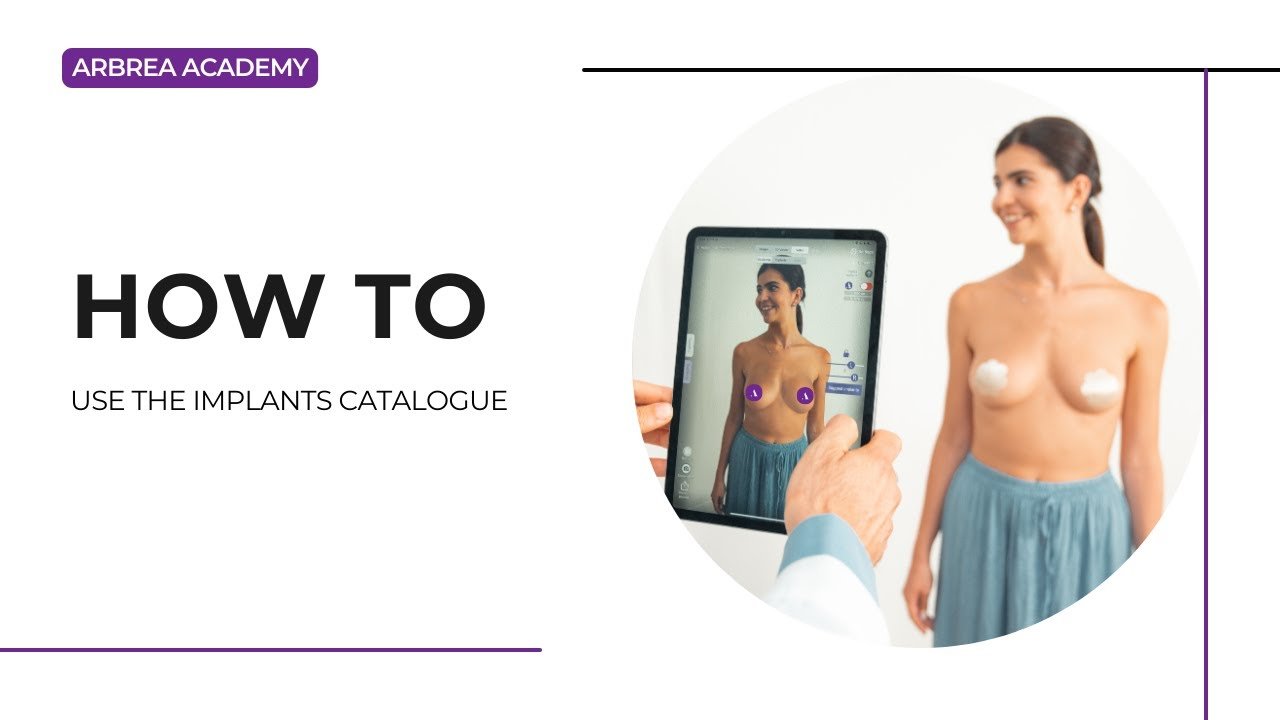
توفّر Arbrea Breast تجربة مستخدم سهلة الاستخدام وشاملة. كتالوج الغرسات, ، مما يتيح للجراحين اختيار وتصور زراعة الثدي المختلفة بكفاءة. تقدم هذه الدليل خطوات عملية لاستخدامها. كتالوج الغرسات لتعزيز استشاراتك قبل العملية الجراحية.
فتح دليل التثبيت #
- افتح ثدي أربريا وانتقِل إلى متصفح ثلاثي الأبعاد.
- ابحث عن زرعات خيارات على الجانب أو أعلى الشاشة.
- انقر على زرعات فتح الكتالوج.
 #
#
اختيار علامة تجارية من الكتالوج #
- ال كتالوج الغرسات يدعم مجموعة واسعة من العلامات التجارية (Allergan، Motiva، Politech، Silimed، CG Aesthetics...)
- إذا كان هناك خيار سابق لاختيار الزرعة، فسيتم عرضه بشكل افتراضي.
- لتحديد علامة تجارية أخرى، قم بالتمرير عبر الخيارات المتاحة.
- انقر على العلامة التجارية المفضلة لديك للمتابعة (على سبيل المثال،, موجه).
#
اختيار غرسة من الكتالوج #
- بعد اختيار علامة تجارية، سترى خطوط إستبدال مختلفة.
- اختر مخصصًا نوع الزرع (على سبيل المثال،, جيل ذاكرة أضافي لينة).
- بمجرد تحديد الخيار، سيتم عرض قائمة بخيارات الزرع المتاحة.
تصفية الكتالوج #
- نظرًا للعدد الكبير من التجمعات الجراحية المتاحة، فإن الفلترة أمر ضروري.
- يمكنك تصفية التجمعات الجراحية بناءً على:
- قطرقم بتعديل المقاس لتجد تركيبات مع قطر قاعدة محدد.
- الوقتيمكن تصفية الغرسات حسب حجمها (على سبيل المثال،, 355 سي سي).
- إسقاط: اختر بين إحداثيات مختلفة، مثل متوسط مرتفع.
- بمجرد تطبيق الفلترات، سيتم عرض فقط التجمعات الجراحية ذات الصلة التي تتطابق مع معاييرك.
#
تطبيق الزرع على أحد الثديين فقط #
- بمجرد تحديد المكون المناسب، اختر ما إذا كنت ستطبقّه على:
- الذراع الأيمن
- الذراع الأيسر
- كلا الثديين
- وهذا يسمح باختيارات زراعة الأنسجة غير المتماثلة عند الحاجة.
اختيار مسار الزرع #
- حدد موقع الزرع عن طريق اختيار أحد الخيارات التالية:
- الرابطة الجُدُّية
- الرأسية تحت العضلات
- الطائرة المزدوجة
- تؤثر هذه الخطة على المحاكاة النهائية ويجب أن تتوافق مع خطة الجراحة.
تعديل المحاكاة باستخدام أداة الأشكال #
- إذا لم يتطابق النتيجة الأولية مع التوقعات، فقم بتعديل المحاكاة باستخدام أداة الأشكال.
- تعديل جراحي لتركيب القناة التمركز الأفقي أو التواضع العمودي لملاءمة تشريح المريض بشكل أفضل.
#
تخزين ومقارنة محاكاة الأقراص المزودة بالزرع باستخدام علامات تميمة #
- للمقارنة بين خيارات الزرع المتعددة، استخدم ميزة الإشارات المرجعية.
- خطوات مقارنة الغرسات:
- حدد وافصل الإستنساخ الأول.
- علامة مرجعية النتيجة.
- اختر إحدى التجمعات الأخرى (مثل حجم أصغر أو منحنى منحني مختلف).
- علامة مرجعية هذا الاختيار الثاني.
- وهذا يتيح للجراحين مقارنة خيارات الأجهزة المزودة بالتقنية المختلفة بشكل مرئي قبل اتخاذ قرار نهائي.
#
الخلاصة #
ال كتالوج الغرسات في ثدي أربريا يُسهّل اختيار التثبيت من خلال تنوع العلامات التجارية، والتصفية المفصلة، وخيارات المحاكاة المتقدمة. من خلال استخدام أدوات التصفية وتعديلات الشكل وميزة وضع الملاحظات، يمكن للأطباء تعزيز الاستشارات وتحقيق التخطيط الدقيق قبل العمليات الجراحية.
لمزيد من التوجيه، شاهد فيديو تعليمي كامل هنا.





 English
  Portuguese
  Italian
  Spanish
  German
  Arabic
  French
  Korean
  Albanian
  Thai
Thai  Hindi
Hindi  Vietnamese
  Japanese